
myprosperity is our firm-wide client portal, with both a web version and mobile app.
The purpose of using this portal is to primarily provide a secure method of communication and sharing of information between dmca and our clients. In turn, this will allow us to build consistency in our communication with each other, and in our collaboration.
(Email is no longer a secure method).
Three areas we use most regularly with our clients in myprosperity are Docs, Rooms, and Tasks.
Here’s a quick reference guide and some tips you may find helpful:
- Docs – is the method in which we securely share files with each other
If using a desktop computer, you’ll find the Docs icon located in the menu on the left-hand side of your screen:

If using the Mobile app, you’ll find the Docs icon located on the Home screen:

TIP: Upload your documents via Docs by choosing the file location folder relevant to your upload. For example, if uploading your tax return information, select the Accounting & Taxation folder, then the relevant financial year, and upload your document/s there.
To upload, simply Drag & Drop your documents or browse and locate your documents via this area:

- Rooms – is the method in which we securely communicate with each other via ‘Chat’
- If using a desktop computer, you’ll find the Rooms icon located in the menu on the left-hand side of your screen:

Select the appropriate Room relevant to your Chat topic.
Then click the Chat Menu tab.
- If using the Mobile app, you’ll find the Rooms icon located on the Home screen:

Select the appropriate Room relevant to your Chat topic.
Then select the Chat icon at the base of your screen.
TIP: To send a Chat message…
Click in the field where it states, ‘Type your message to the room here’.
You must then type the @ symbol and select the name of the message recipient in order for that person to be notified of your message (or any other activity in the room).
- Tasks – is the method in which we allocate tasks requiring your action (this can include automatic reminder notifications until task is complete)
- If using a desktop computer, you’ll find the Tasks icon located in the menu on the left-hand side of your screen:

- If using the Mobile app, your outstanding tasks will be located at the top of the screen under the My Tasks heading.
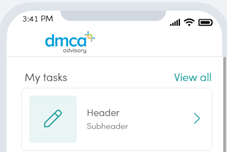
Click on a specific task to view what’s requiring your action.
Once you’ve completed the task, click the Mark as complete button.
(You’ll be able to view a list of your ‘Outstanding’ tasks, or ‘Completed’ tasks.)
The Mobile App
The Mobile app allows you quick access to your portal without having to log in via a computer.
You can securely:
- Take and upload photos of documents, receipts etc
- Send and receive quick chat messages
- Complete tasks we may have allocated to you
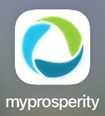
You can download the Mobile App for free from your Google or Apple app store. Make sure the app logo looks like this before downloading:
TIP: Make sure you allow ‘notifications’ in the settings of your phone and in the app so you can receive a push notification any time we send you a Chat message or Task requiring action from you.
Net Worth
If you are a financial planning client, you will also be able to view and update your list of assets and liabilities in the Net Worth section of myprosperity.
In Summary
Of course, there are many other features myprosperity offers, this is just a snapshot!
For security purposes, we aim to move all clients on to our portal over the coming months, in order to allow us to communicate and collaborate together as we approach the end of the current financial year and a new one beginning.
If you have any questions or concerns at all, please contact us.